Printing on Heavy Paper or Labels

September 10, 20251 min read

Printing on Heavy Paper or Labels

The bypass tray is most commonly used to print on heavier paper, labels or Envelopes.

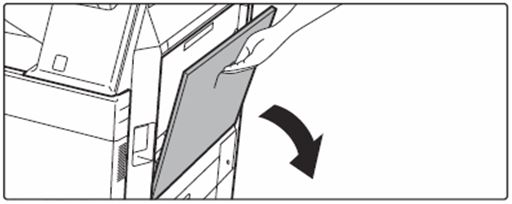
01. Open Bypass Tray

paper tray 1

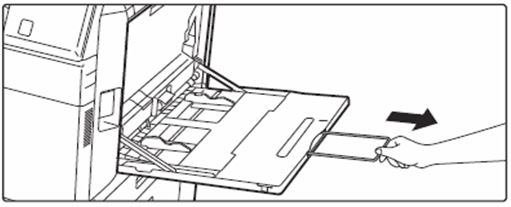
When loading paper larger than 8-1/2" x 11"R or A4R, pull out the extension guide all the way out.

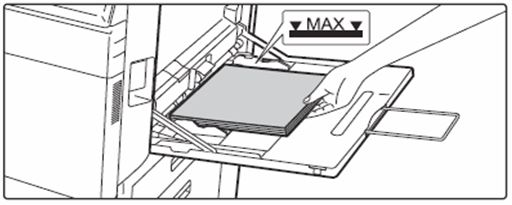
02. Load the paper with the print side facing down.
printing sharp 2

Insert the paper along the bypass tray guides all the way into the bypass tray until it stops slowly. Inserting the paper with excessive force may cause the leading edge to fold back. Inserting the paper too loosely may cause skewed feeding or misfeeds. The paper must not exceed the maximum number of sheets and must not be higher than the indicator line.

03. Set the bypass tray guides correctly to the width of the paper.
printing tray 3

Adjust the bypass tray guides so that they slightly contact the loaded paper.

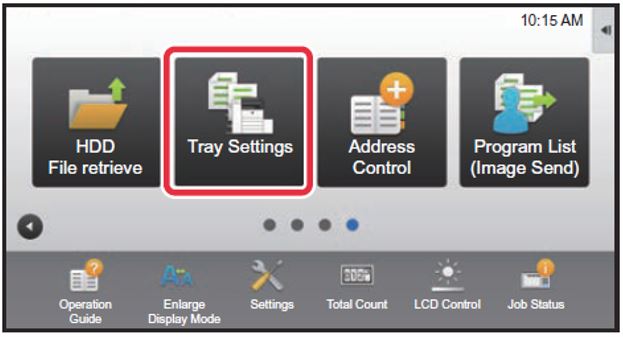
04. Press the [Home Screen] key.

05. Tap the [Tray Settings] key.

tray settings

06. Choose the tray you wish to program (Bypass).
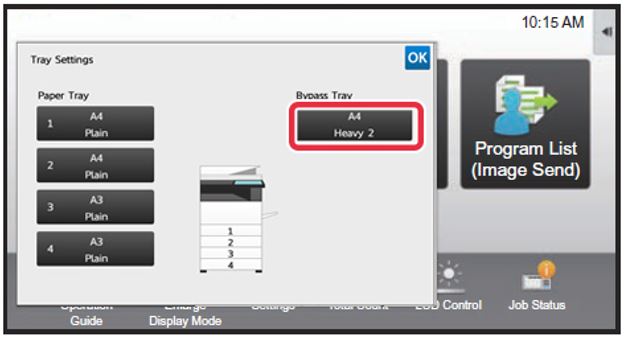
tray program bypass

07. Choose the Paper Type.

Note: Heavy 1 (for paper thickness 106-176 GSM) Heavy 2 (for paper thickness 177-220 GSM) Heavy 3 (for paper thickness 221-256GSM) Heavy 4 (for paper thickness 257-300 GSM) Or Labels, for label printing.

There is a paper size tab which you can use for custom paper, otherwise if you have the paper loaded already in the tray, the AUTO-AB feature will auto select the size accordingly.
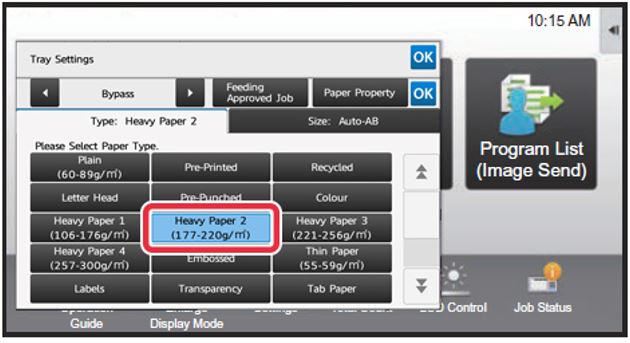
program choose paper

08. On your computer.

On your computer, open the file you wish to print, [Print] [Printer Properties] Locate the [Paper Source] tab and select the [Paper Tray] & [Paper Type] settings that match what you programmed in your sharp photocopier. You can now print your file to the special paper on your sharp photocopier Bypass Tray.
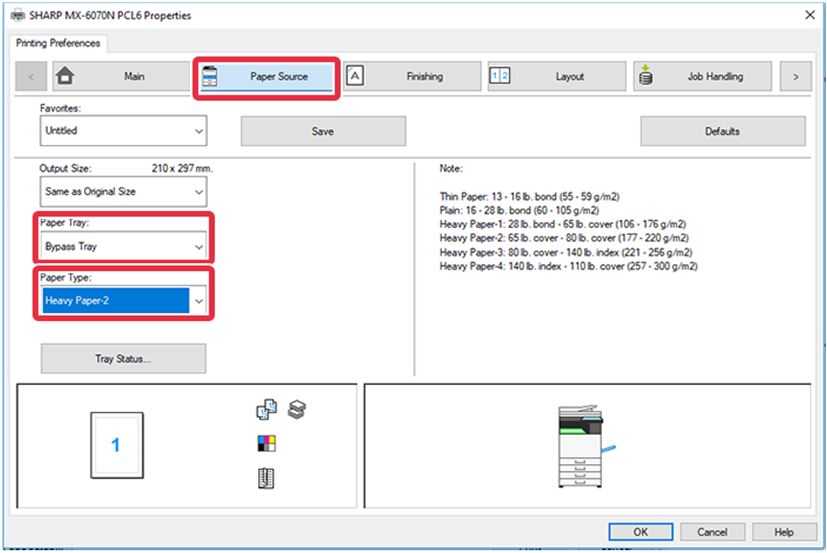

on your computer

Back to Blog

Customer Success Stories

Practical solutions. Real people. Proven results.

An Axia Office representative consulting with an elderly woman at a Sydney aged care facility.

Leading Sydney aged care facility group saves tens of thousands of dollars with free Print Health Check & Unlimited Print Plan

Pharmacist in Sydney receiving tailored documentation for a cost-effective Managed Print Plan.

Pharmacy in Sydney receives specifically tailored & cost-effective Managed Print Plan

A teacher and child playing with blocks at a Sydney childcare centre supported by the Unlimited Print Plan.

How Axia’s Unlimited Print Plan helped top childcare centres in Sydney avoid unexpected print costs

A healthcare professional in a Sydney medical practice discussing efficiency gains from a Managed Print Plan.

Improved efficiency and cost savings with a Managed Print Plan for medical practice in Sydney

Renting or Lease a Printer

Axia offers cost- effective photocopier lease options, multiple leading brands, preventative maintenance & a variety of flexible finance options to suit any business.

Managed Print

A Managed Print Plan offers a fixed cost per mono and colour page that covers equipment, service, and usage across all devices.

Unlimited Print

Our Unlimited Print Plan giving unlimited colour and black & white printing, scanning, and copying for one simple flat monthly fee.

Clock icon representing a 4-hour fast breakdown repair guarantee.

3.2 Hours

Breakdowns Fixed Fast

No Offshore Call Centres: Sydney Staff

Heart in hand icon symbolizing over $200,000 in charitable donations.

$200K+

To Charities Since 2020

RSPCA NSW, Foodbank + Others

Smiling face icon representing thousands of happy business partnerships.

1,000's+

Happy Business Partnerships

Over 90% Customer Retention

Map of Australia icon indicating the company has been Australian owned and operated since 1996.

1996

Australian Owned & Operated

Family Operated Since 1996